

LEADING Job Release Note 26.8
The highlight of version 26.8 is the new Mobile Timesheet App: Employees can now easily record their working hours on the go using a smartphone or tablet – either directly in the browser or via the app installed on their home screen.
In addition, the release introduces a new central search across all agency data, additional options for deleting and restoring documents, as well as further modules that are now available directly in the LEADING Job web application. The job management has also been enhanced with new features.
In total, the update includes 15 new or updated features, as well as 13 functional improvements and minor bug fixes.
In the web application of Leading JOB each update only takes place after prior consultation with the customer. You can test the new features first in your test database.
1. New Mobile Timesheet App for mobile time tracking
General
2. New Unified Search across all agency data with direct link
3. New variables for order notifications
Import/Export
4. New option for importing payments
5. New direct link to the Accounting Export Protocol
Master data
6. “Functional groups” module now available in the web application
7. “Team” module now available in the web application
8. New “Hour category” module now available
9. “Hour rate” module now available in the LEADING Job web application
10. “Text templates for header and footer” now also available in the web application
11. “Technical text” module now available in the web application
12. “Translations” now also available in the LEADING Job web application
Documents
13. New option for deleting and restoring documents
Job
14. New Additional information for services within a job
15. Job change log now available in job management
16. Higher-level information now available directly in Job - Services
Timesheet
1. New Mobile Timesheet App for mobile time tracking
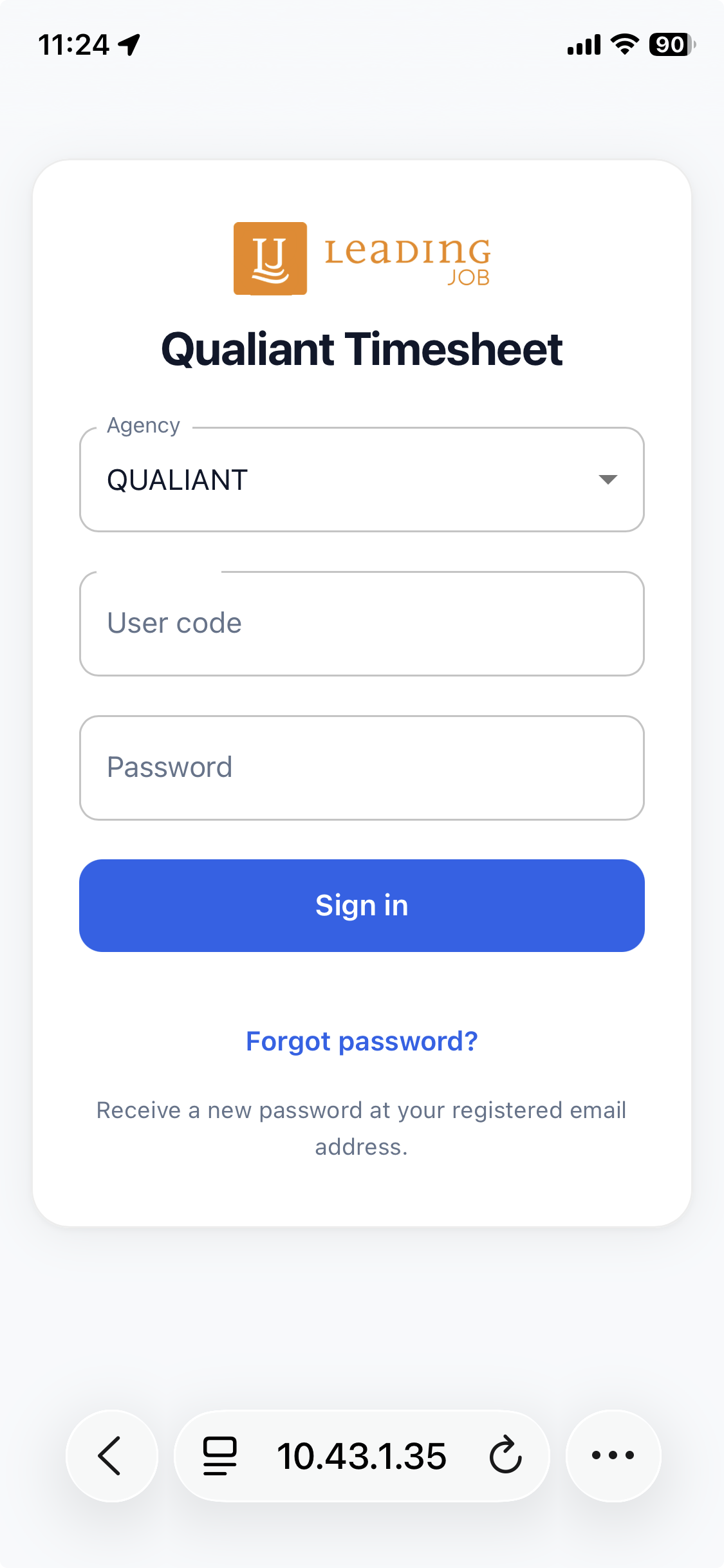
With the new Mobile Timesheet App, employees can conveniently record their working hours on the go using a smartphone or tablet. The application is optimized for mobile devices and can be used directly in the browser or installed on the home screen.
Both working hours on client jobs and internal time and absences can be recorded. Frequently used jobs are available directly for quick time tracking. Existing entries can also be edited or deleted afterwards.
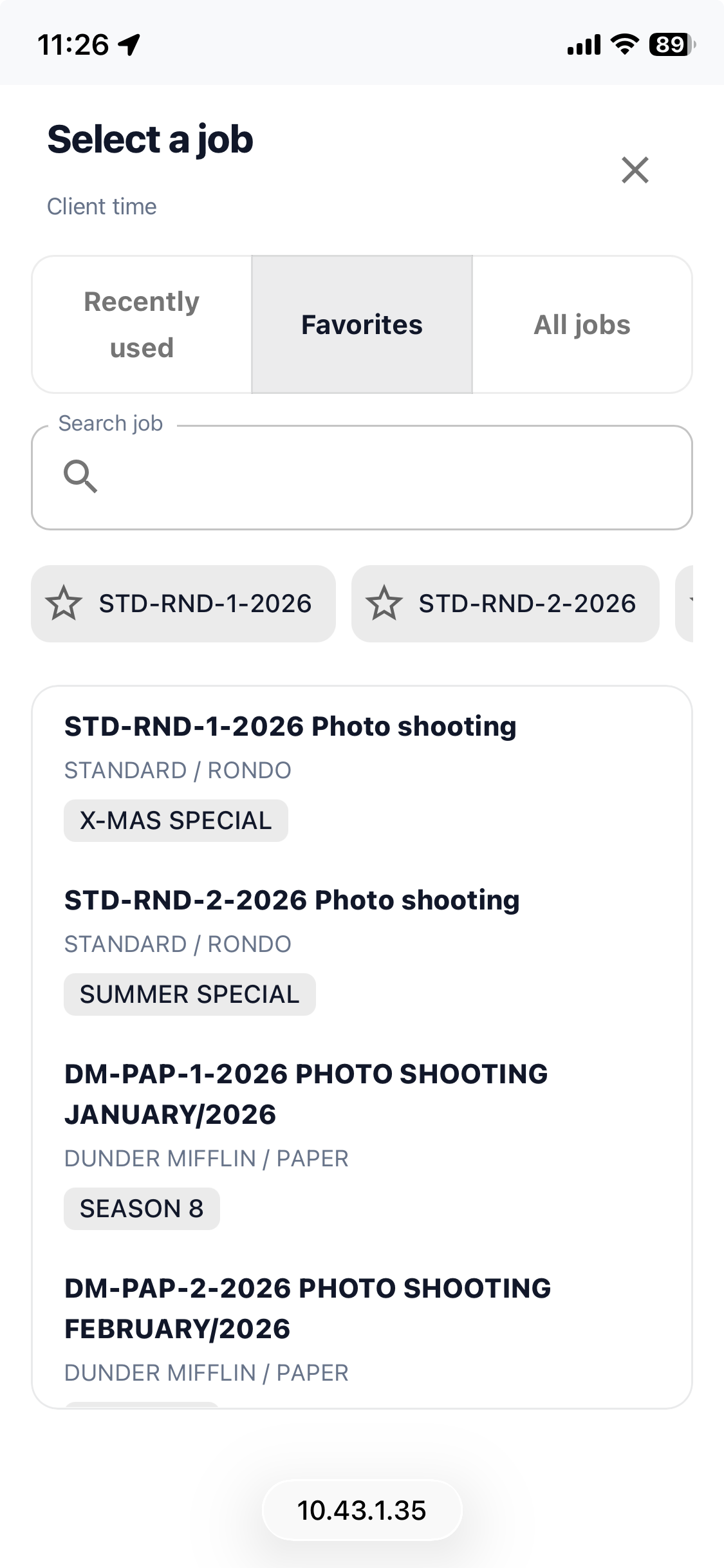
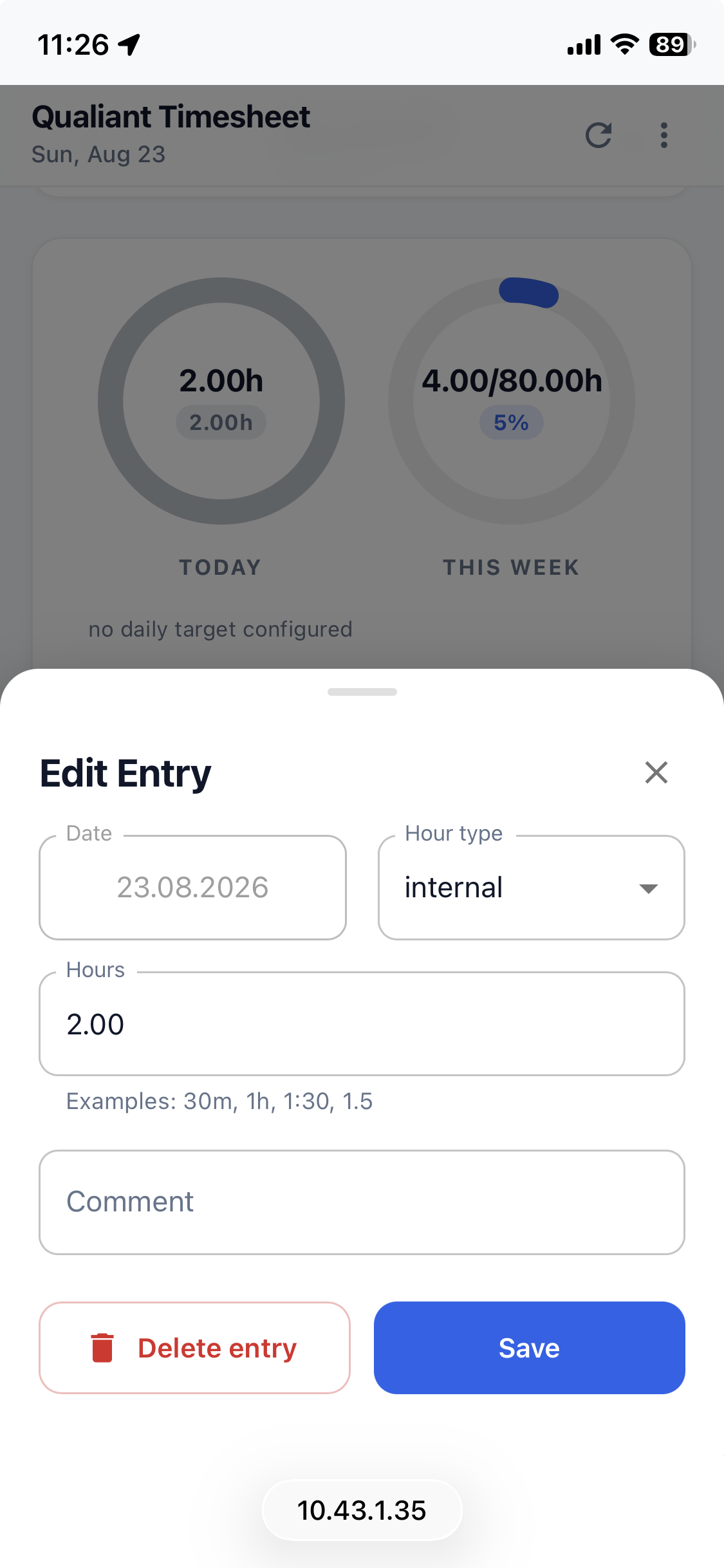
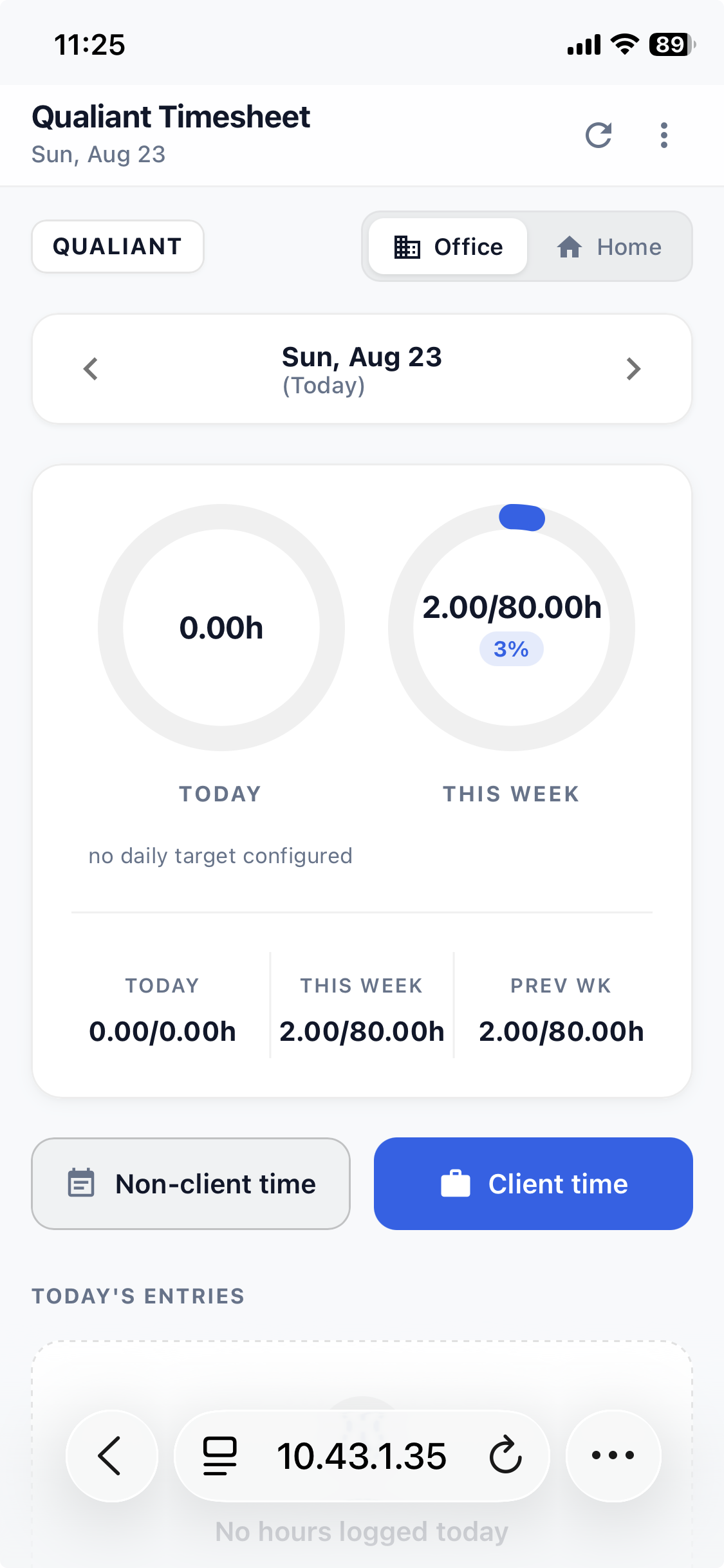
The dashboard provides a quick overview of the hours recorded for the selected day as well as the current and previous week. If target hours are configured, the current status in relation to the daily or weekly target is also displayed.
All information on installation, login and using the Mobile Timesheet App can be found in our manual: [Link to manual]
General
2. New Unified Search across all agency data with direct link
Information that previously had to be searched for in individual modules or via several steps can now be searched centrally.
With the new “Unified search”, both master data and transaction data can be queried live.
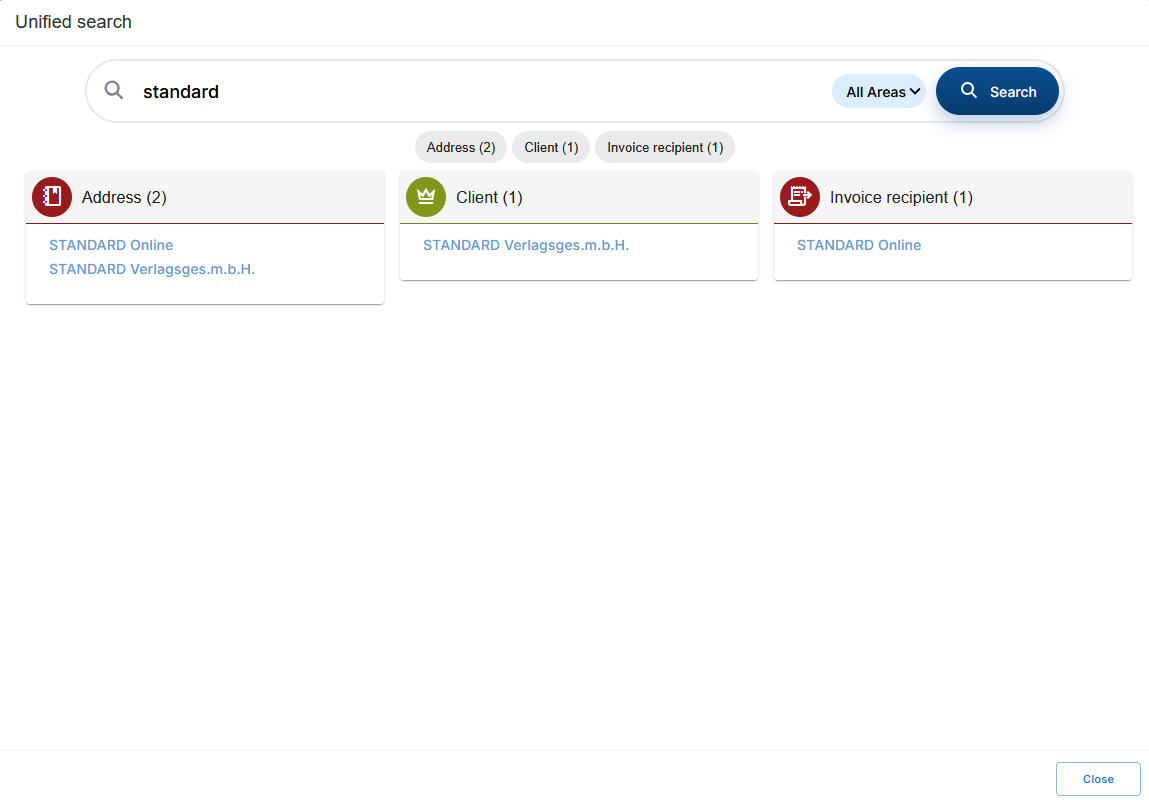
The search works across modules. Information found is displayed directly in the relevant context. A direct link allows you to jump straight to the corresponding entry.
Existing access rights are taken into account when opening the data: Search results are also displayed if you do not have permission to open the respective data record. In this case, clicking the search result will not open the corresponding entry.
This makes everyday searches considerably easier: Project managers can quickly find jobs and clients, assistants can also find cost estimates using product keywords, and controlling staff can access specific information centrally without having to navigate through different modules.
3. New variables for order notifications
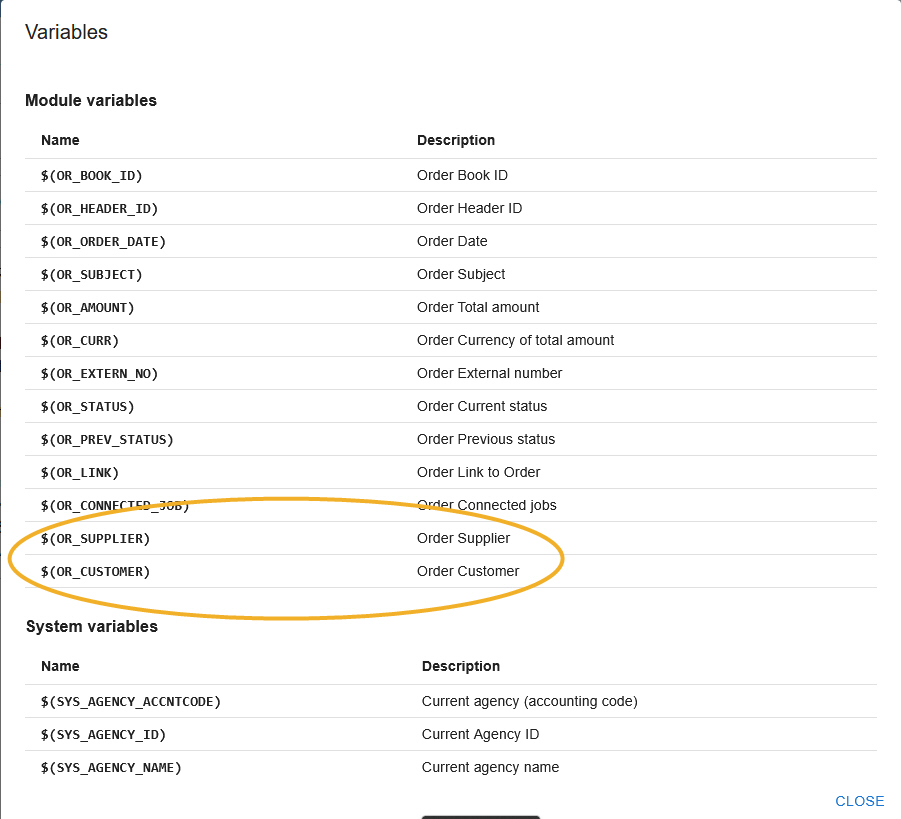
New variables are available to provide a better overview in internal notifications for orders – for example when delegating or authorizing. These allow the relevant supplier and/or client to be displayed directly in the email.
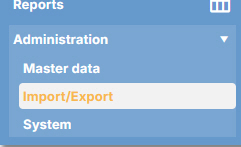
To configure them, go to “Administration”, open “System” and select “Email templates”.
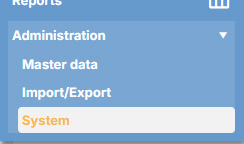
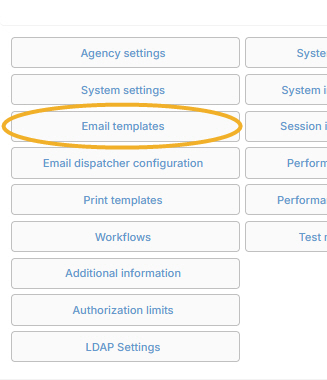
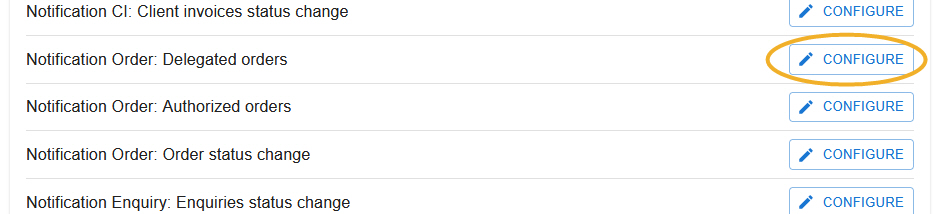
For order notifications, select the required template and click “CONFIGURE”.
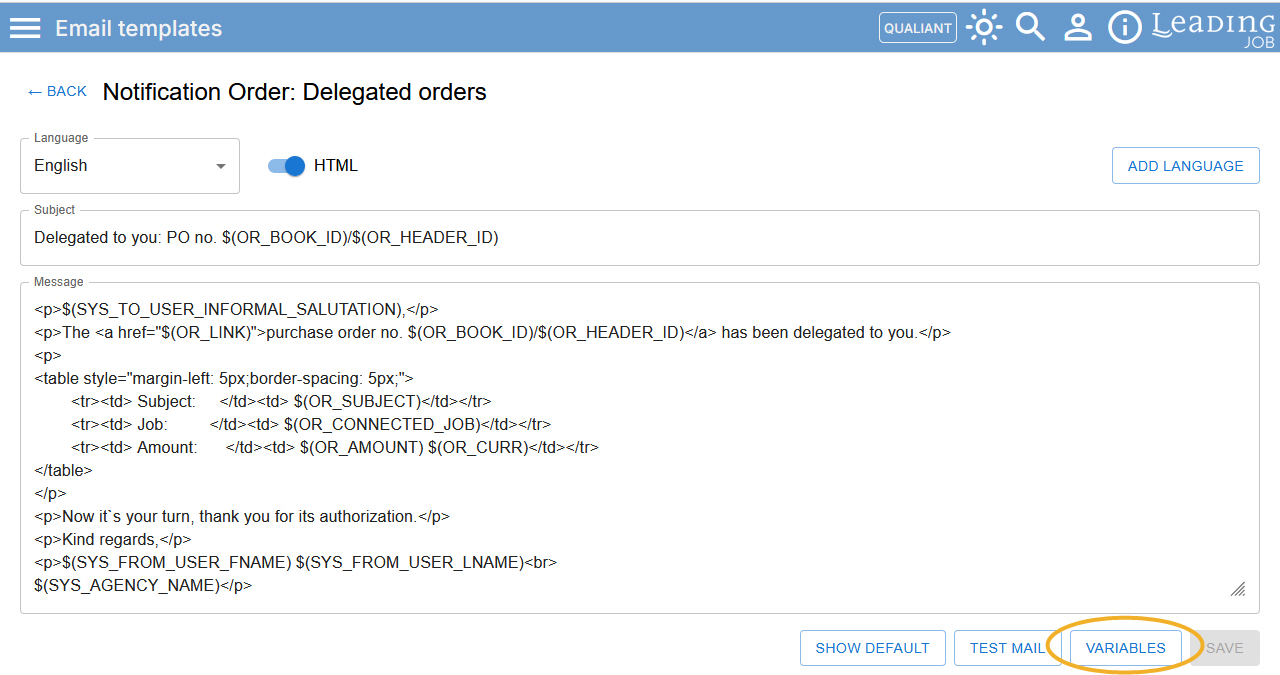
In the template definition, click “VARIABLES” at the bottom of the screen to view the available variables and their definitions.
The new variables are “Order Supplier” and “Order Customer”.
Import/Export
4. New option for importing payments
Some accounting interfaces support importing payments from the accounting system into LEADING Job. This can, for example, automatically set client invoices to “paid”.
If your accounting interface supports this function, payments can now be imported directly via the LEADING Job web application.
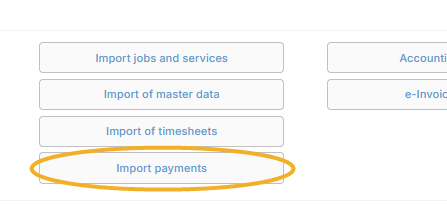
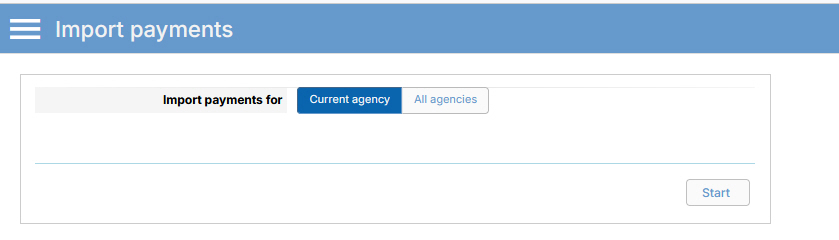
You can choose whether payments should be imported only for the Current agency or for All agencies.
If an import file is available via the accounting interface, simply click “Start” to import the payments from the file.
5. New direct link to the Accounting Export Protocol
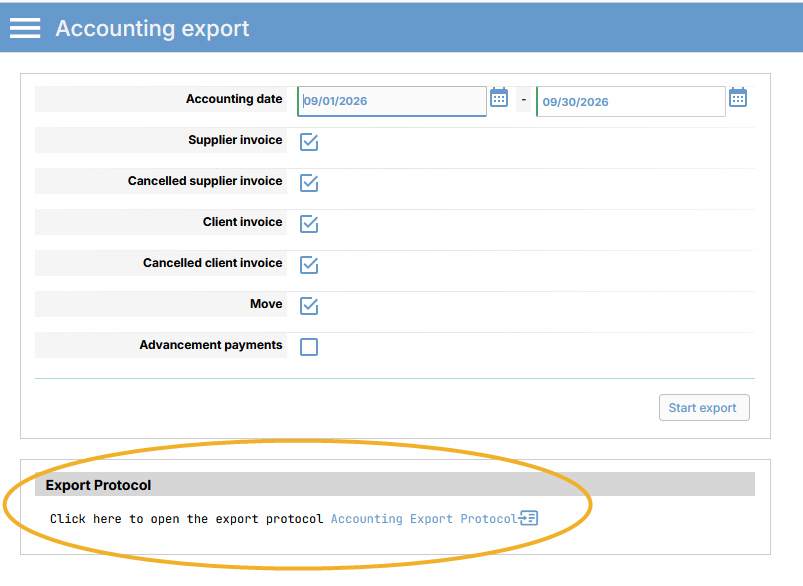
Access to the Accounting Export Protocol has been simplified.
A direct link is now available in the Accounting export screen. Clicking it takes you directly to the “Accounting Export Protocol” report selection.
Master data
6. “Functional groups” module now available in the web application
With version 26.8, the “Functional groups” module has been migrated to the web application.
As usual, the existing functional groups are displayed on the left-hand side. After selecting an entry, the corresponding data is displayed on the right-hand side.
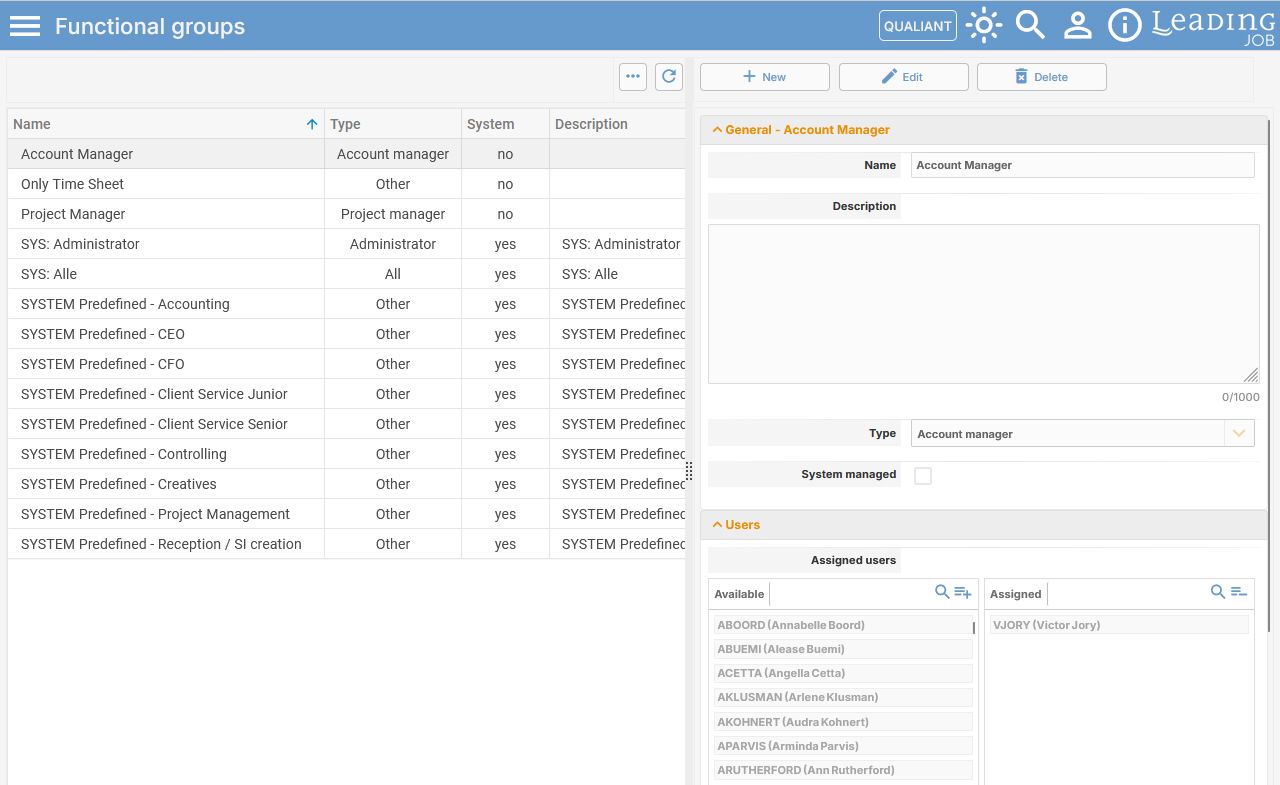
All groups that are not predefined by the system can be edited, and new functional groups can also be created.
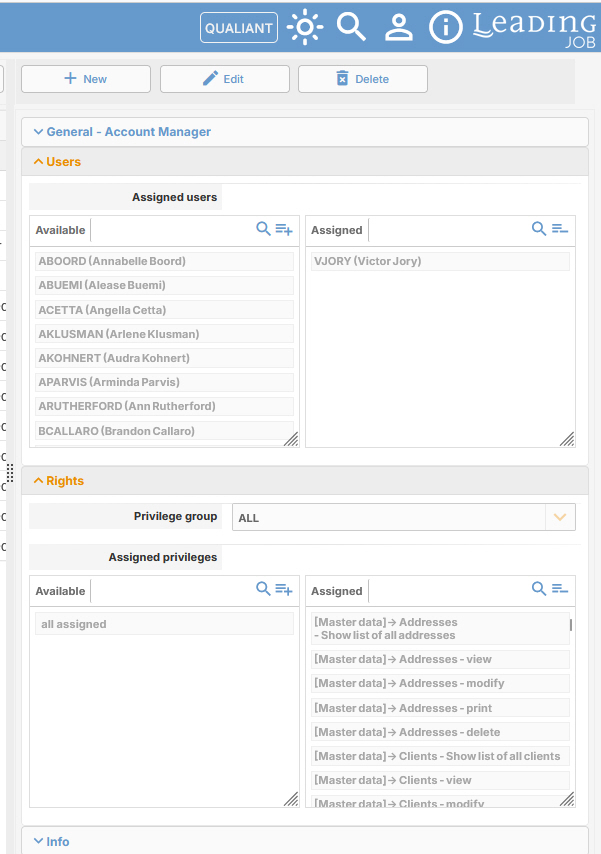
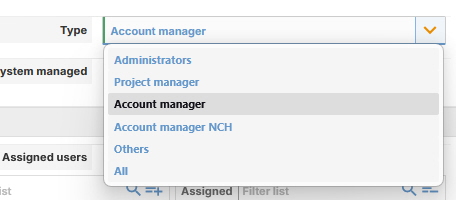
In the “General” section, you define the name of the functional group, add a description and specify its type.
In the “Users” section, you specify which users should be assigned to the functional group.
In the “Rights” section, you can use the “Privilege group” field to define which privileges should be displayed for assignment. The required privileges can then easily be assigned via Drag & Drop by moving them from the Available field to the Assigned field.
7. “Team” module now available in the web application
The “Team” module is now also available in the LEADING Job web application.
Existing teams are displayed on the left-hand side, while the corresponding data is shown on the right-hand side.
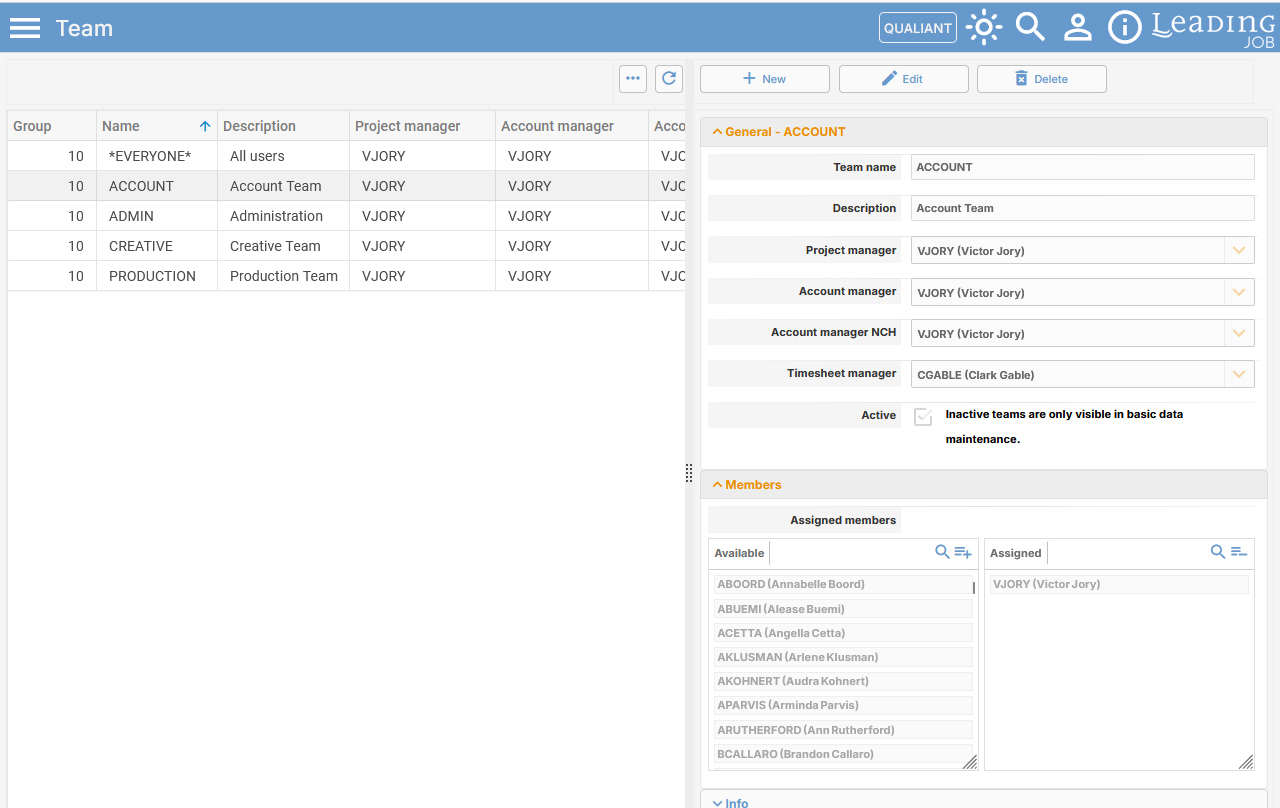
You can edit existing entries, create new teams and remove teams that are no longer required.
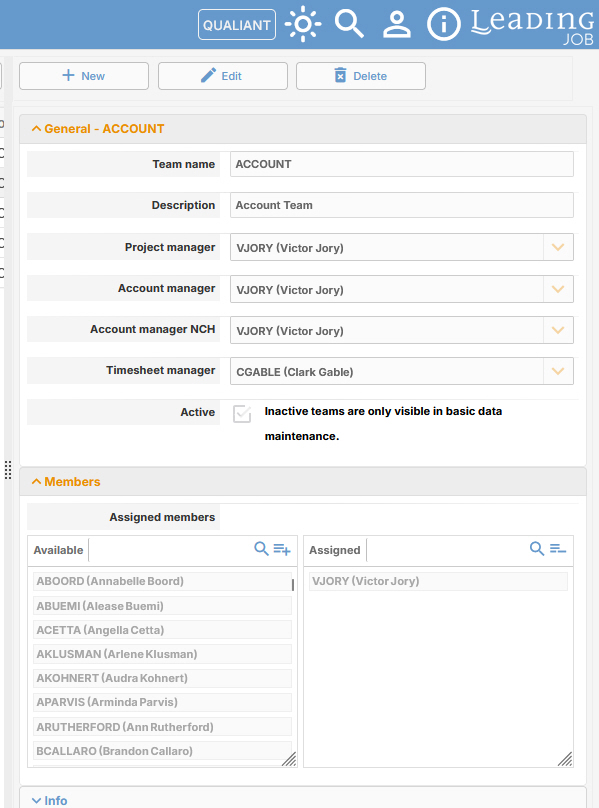
In the “General” section, you can define the Team name and a description. You can also specify which employees are responsible as Project manager, Account manager, Account manager NCH or Timesheet manager. Teams can also be activated or deactivated for use.
In the “Members” section, employees are assigned to the team simply by dragging and dropping them from Available to Assigned.
8. New “Hour category” module now available
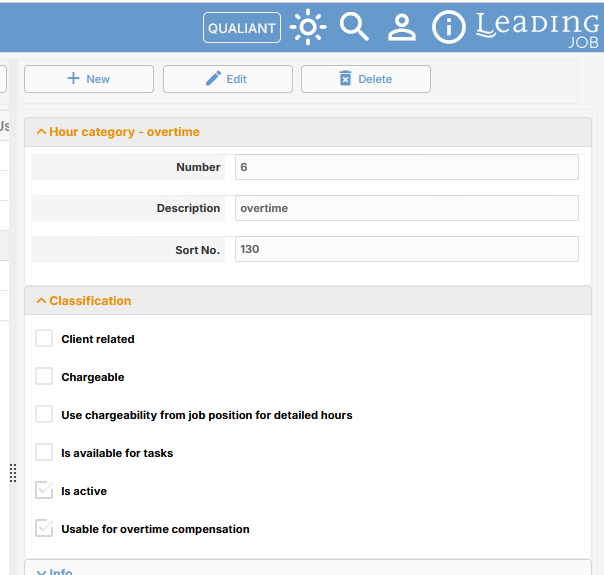
Hour categories can now be edited directly in the LEADING Job web application.
As usual, existing entries are displayed on the left-hand side and the data to be edited on the right-hand side.
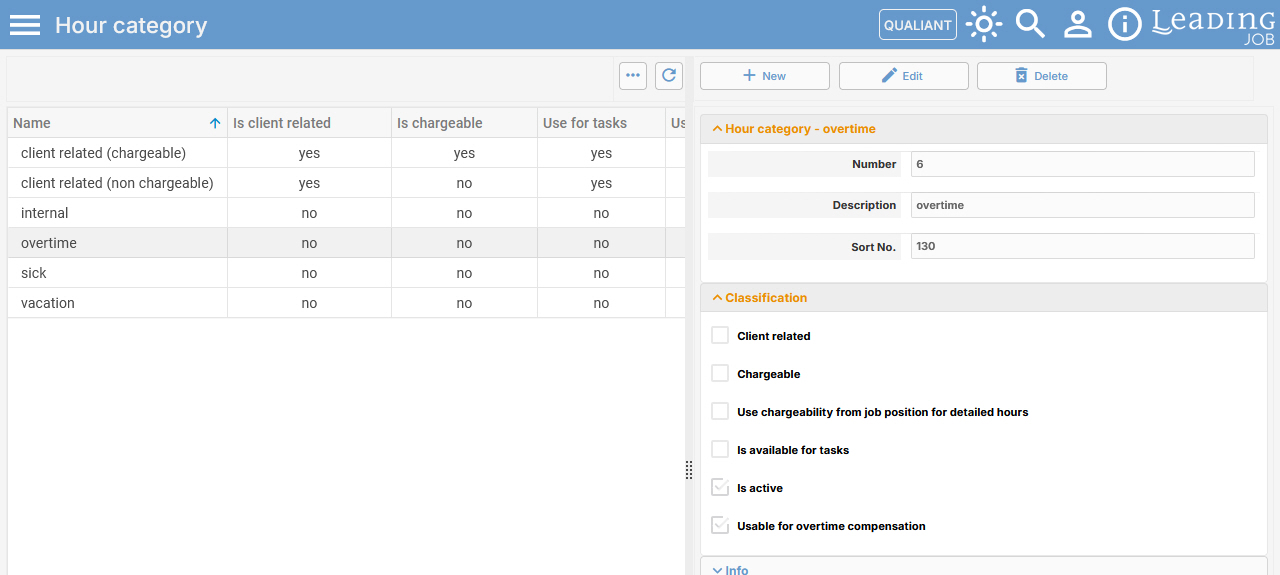
In the “Hour category” section, you enter a description and use the Sort No. to determine the order in which the hour categories are displayed in the timesheet selection field.
In the “Classification” section, you specify, among other things, whether an hour category is Client related and/or Chargeable, whether it Is available for tasks, or whether it is Usable for overtime compensation.
Use “Is active” to activate or deactivate hour categories for use.
9. “Hour rate” module now available in the LEADING Job web application
With version 26.8, external hourly rates for hours worked by employees can now also be defined directly in the web application.
Existing entries are displayed on the left-hand side, while the corresponding settings can be edited on the right-hand side.
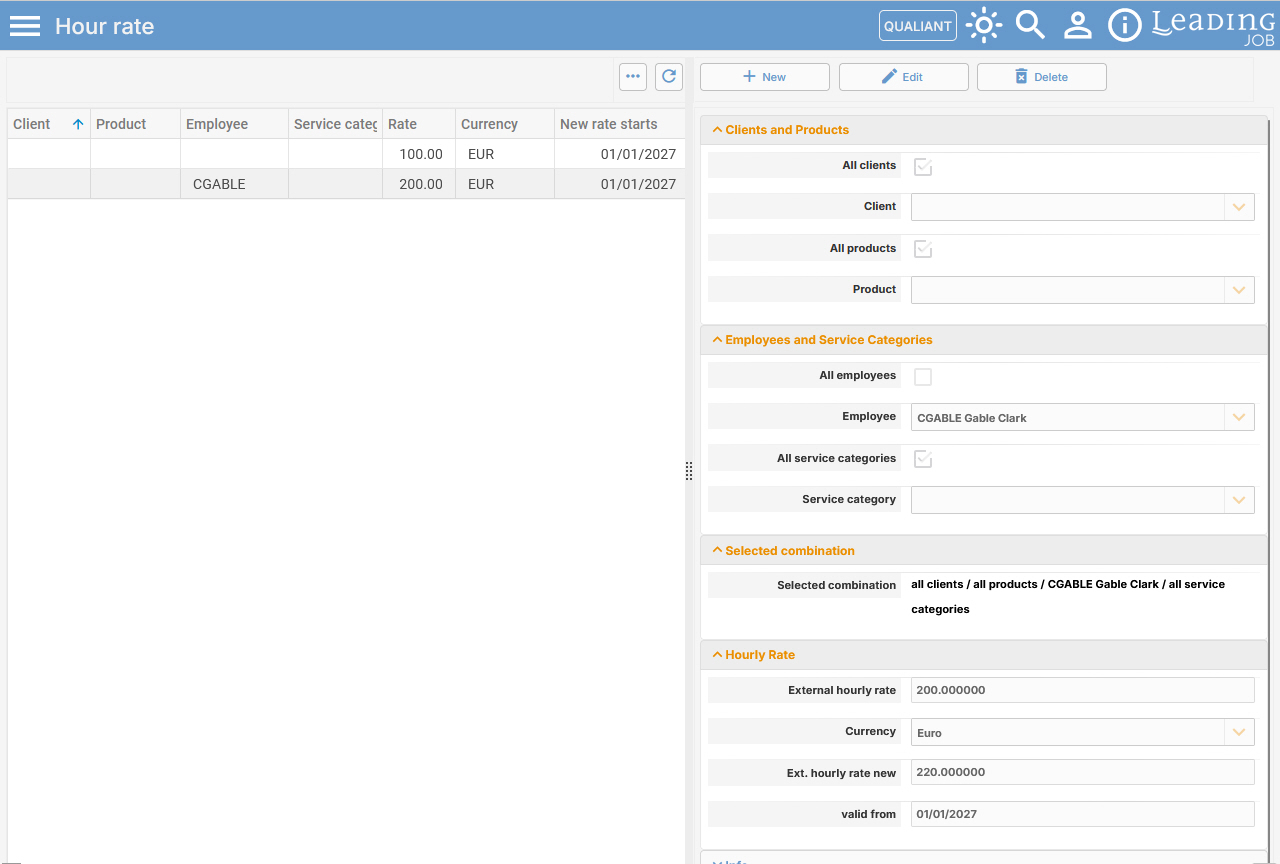
In the “Clients and Products” section, you specify whether the hourly rate should apply to All clients and/or All products, or only to individual clients and products.
In the “Employees and Service Categories” section, you define whether the hourly rate applies to All employees or only selected employees, and to All service categories or only selected service categories.
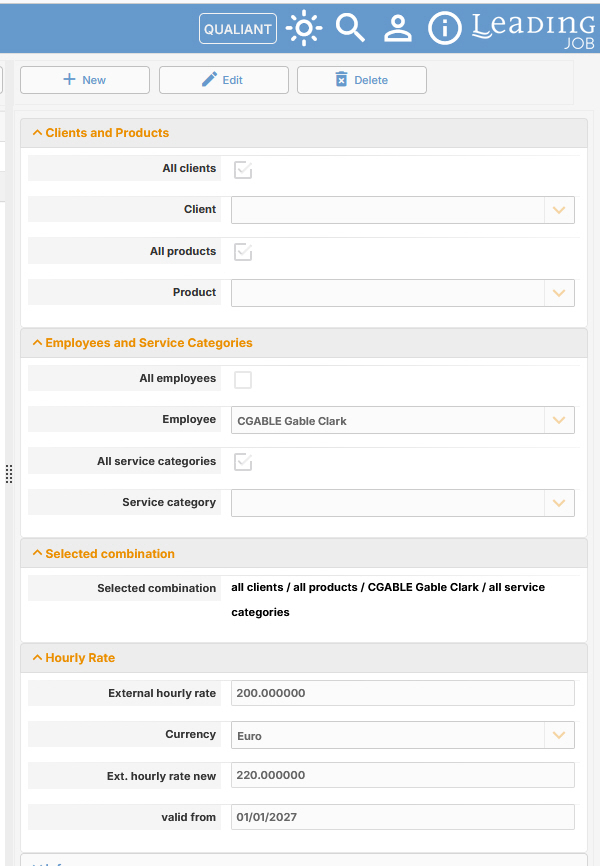
The “Selected combination” section provides a brief summary of the selected settings.
In the “Hourly Rate” section, you define the External hourly rate and the corresponding Currency. You can also enter a new external hourly rate and use “valid from” to define the date from which LEADING Job should automatically switch to the new rate.
10. “Text templates for header and footer” now also available in the web application
Text templates for header and footer can now also be edited and managed directly in the web application.
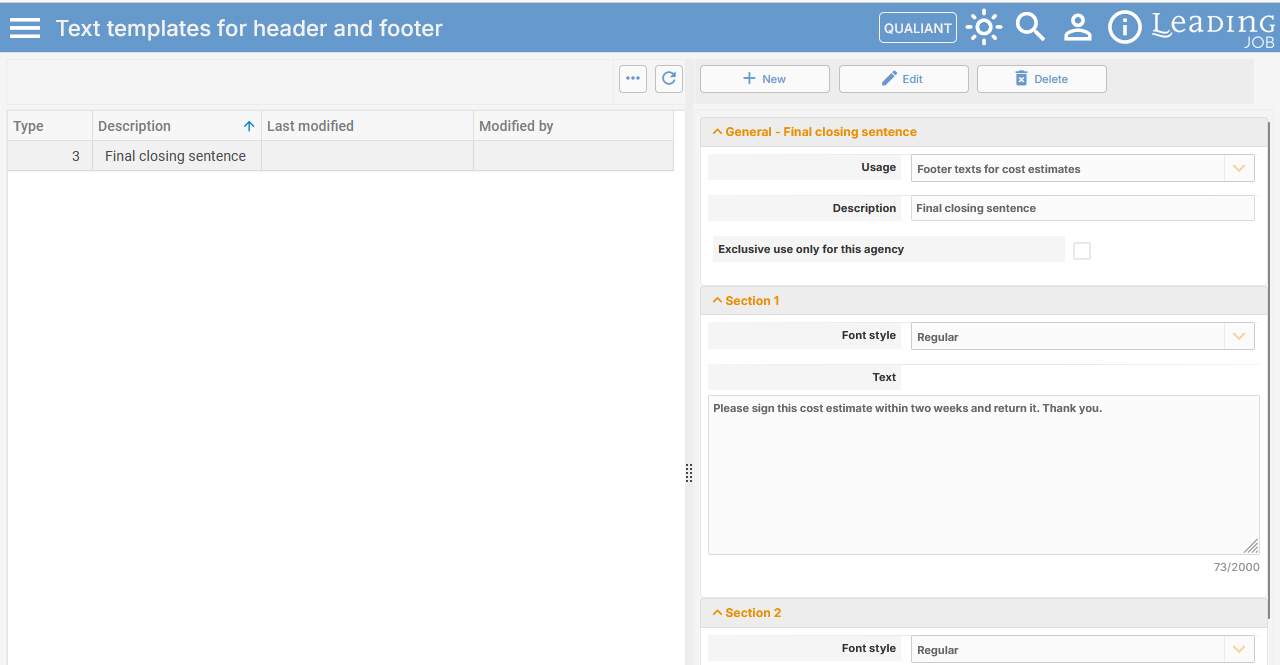
Select an existing entry from the list on the left-hand side or click “New” to create a new template.
In the “General” section, you enter the description and define the Usage, for example whether it is a header or footer text for cost estimates, invoices or orders. You can also define whether the text is intended for exclusive use by the current agency.
In Section 1 to Section 3, you can define text that will appear on the corresponding layouts when the template is selected. The Font style can be set accordingly.
11. “Technical text” module now available in the web application
The “Technical text” module, whose contents can be used when creating orders, has been integrated into the LEADING Job web application.
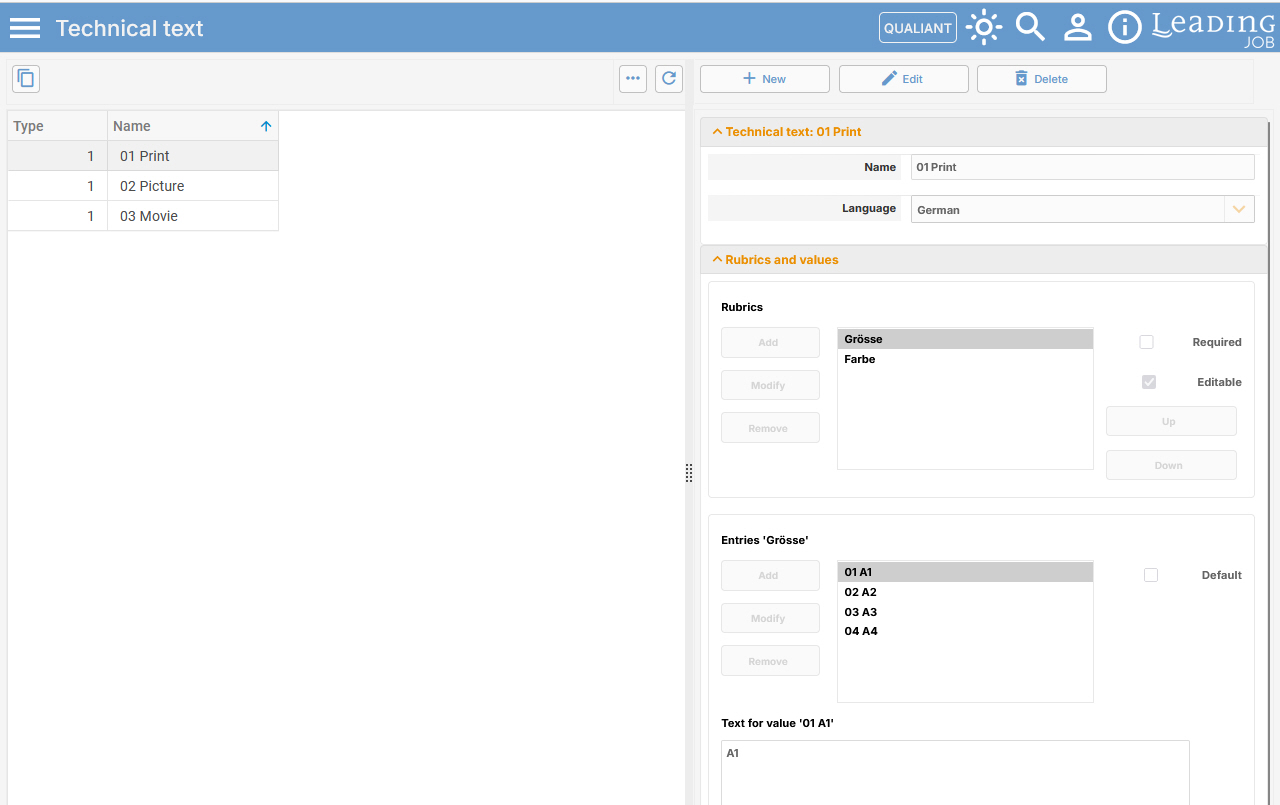
Here you can define tabular texts consisting of Rubrics and values.
For printed materials to be ordered, for example, you can create rubrics for sizes and colors. Entries could include A1, A2, etc. for sizes and BW, 2c, 4c, etc. for colors.
Employees can then easily select these Technical texts. The corresponding information appears on the order layout, making the order easier to read.
12. “Translations” now also available in the LEADING Job web application
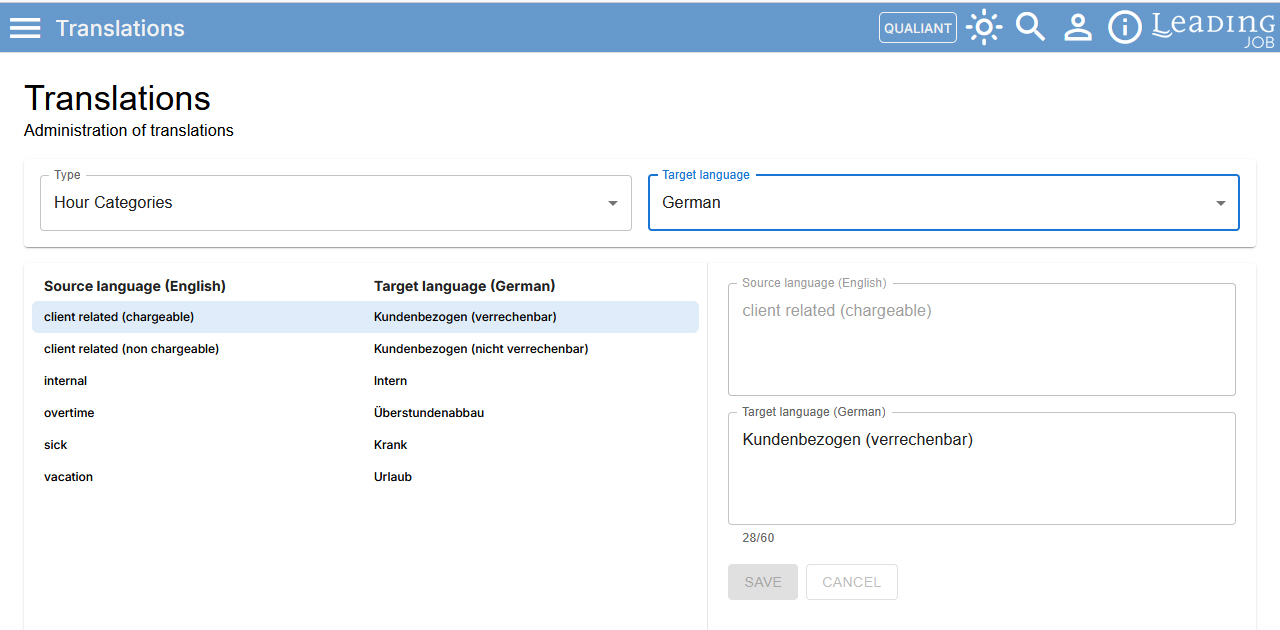
With version 26.8, entries from various modules can now be translated directly in the web application, for example for output on English-language layouts.
Under “Type”, select the module whose entries you want to translate and specify the Target language.
You can then go through the entries of the selected module and add the corresponding translation for each entry from the Source language to the Target language.
Documents
13. New option for deleting and restoring documents
New options for deleting and restoring documents are now available in all modules in which documents can be stored – for example orders, cost estimates, jobs or supplier invoices, as well as master data such as suppliers or clients.
Deleted documents are initially moved to a trash. The corresponding information about deleted documents is available in the relevant modules.
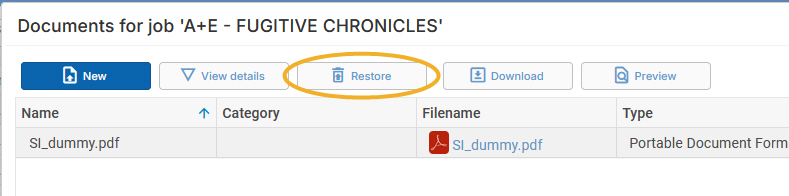
To restore a document, select it and click “Restore”.
Documents in the trash cannot be permanently deleted manually via the application. However, under “Administration > System > System settings”, you can define whether deleted documents should be cleaned up automatically and after how many days.
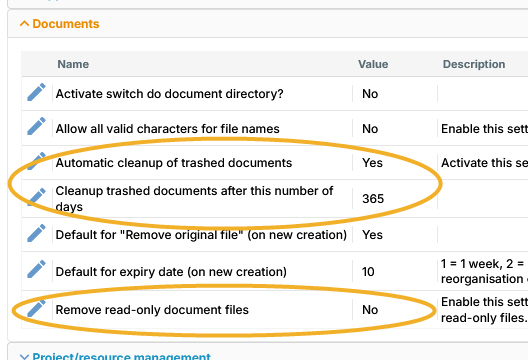
After updating to version 26.8, the settings shown are automatically applied as the default. Your local system administrator can change these settings at any time.
Important: Permanently deleted documents cannot be restored.
Job
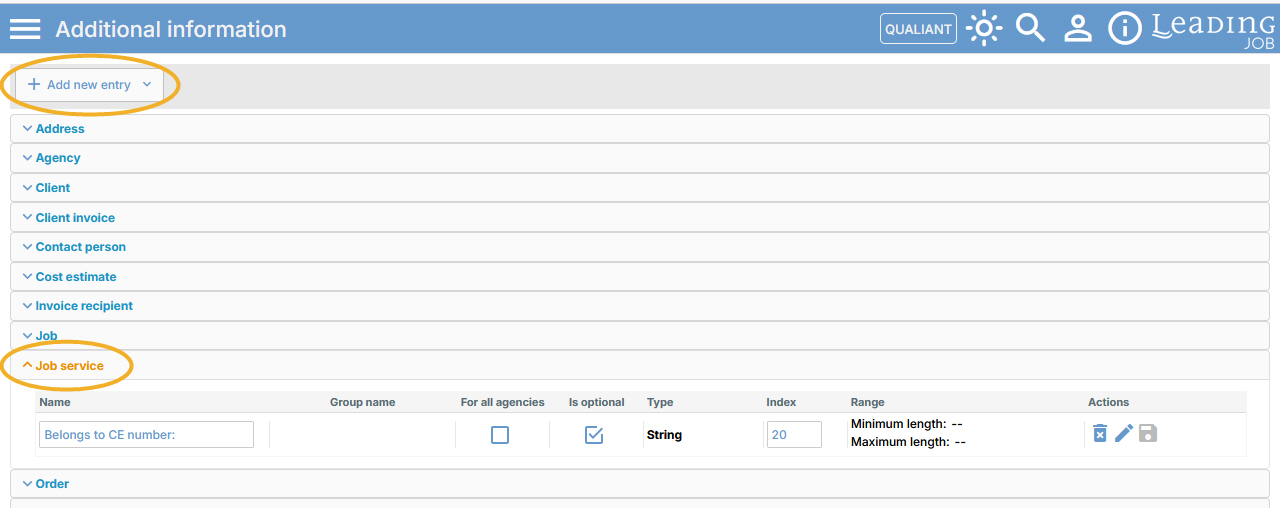
14. New Additional information for services within a job
Additional information can now be defined individually for services within a job.
To do so, go to “Administration”, open “System” and select “Additional information”.
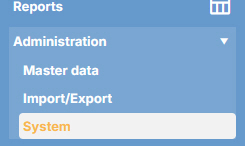
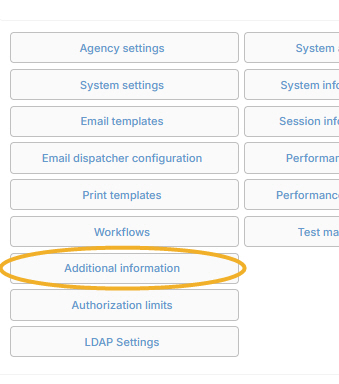
The new “Job service” entry is now available in the list of Additional information. As in other areas, you can define additional information according to your requirements – for example as a String, HTML field, numeric field or checkbox.
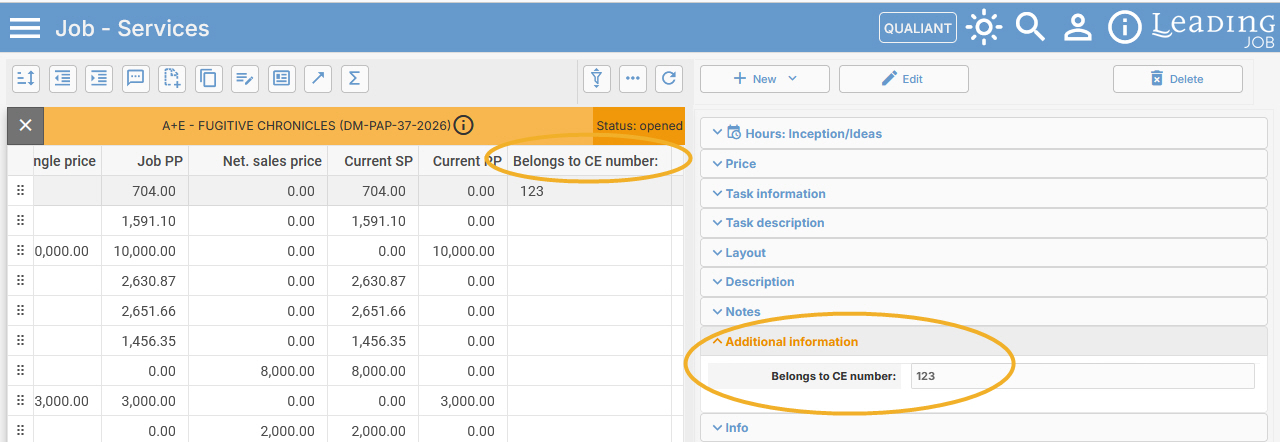
After saving, a new “Additional information” section containing the fields you created is available within Job - Services.
The additional information can also be displayed as columns in the overview of services within a job.
15. Job change log now available in job management
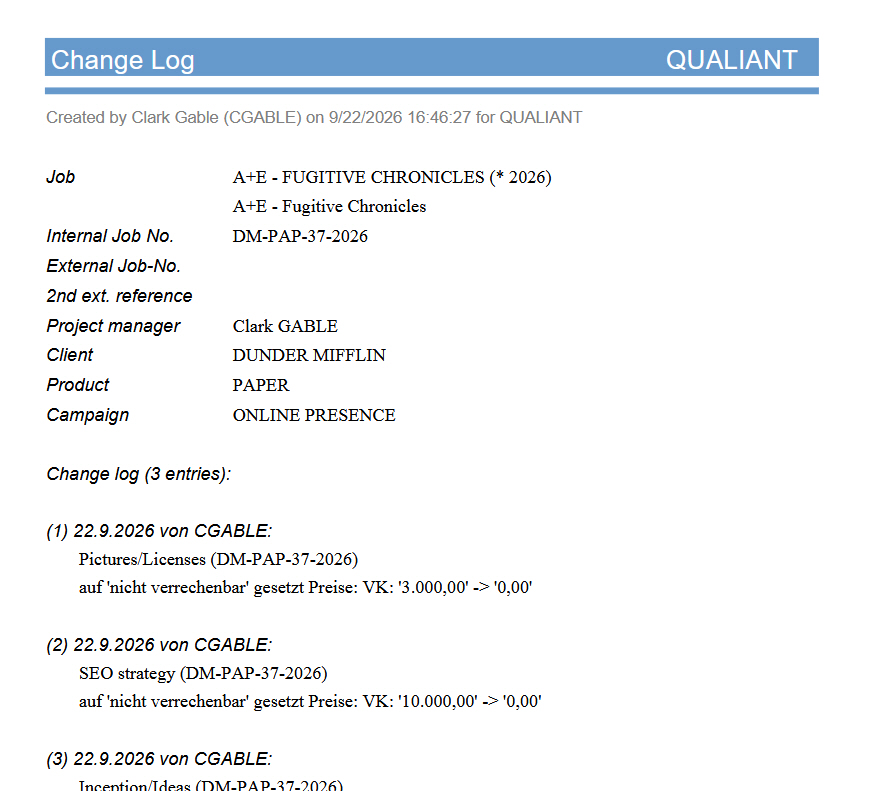
With version 26.8, the Job change log for changes made using the change function – for example changing a service from chargeable to non-chargeable – has been integrated directly into job management.
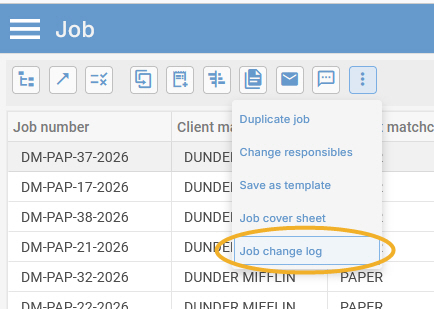
After selecting the entry, the Change Log is provided as a PDF.
As part of this change, the existing Job cover sheet has also been moved to the context menu under the advanced options.
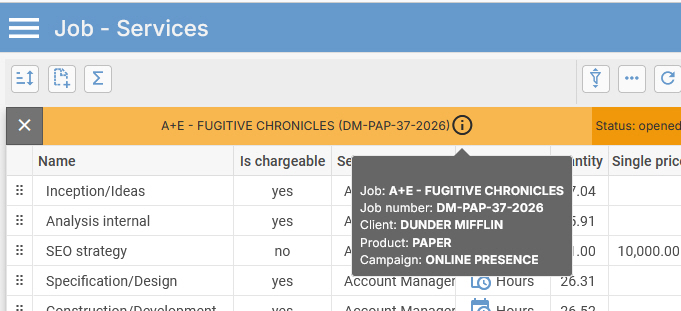
16. Higher-level information now available directly in Job - Services
For a better overview and easier orientation, a new function has been added to Job - Services. With a single click, all relevant higher-level information for the job can now be displayed.
Do you have questions about this release note? Have you discovered a bug in the current version? Get in touch with our LEADING Job Support team:
+43 1 503 6644
_______________________________________
Updates to the LEADING Job web application are only carried out after prior consultation with the customer. You can test all new features in your test database before they are deployed. This document is provided for information purposes only and does not constitute any guarantee or contractual obligation.
The information contained herein reflects the state of the software at the time of publication. Subsequent changes are possible.
The contents of this document are not part of the licence agreement. Qualiant Software accepts no liability for the accuracy or completeness of the information provided.
LEADING Job integrates project management and resource planning for agencies with time tracking, leave management and workload planning, covering the entire process from cost estimates and invoicing to accounting, controlling and reporting. Available as a cloud or on-premise solution. Keep your agency under control with Qualiant Software.