

LEADING Job Release Note 26.4
The highlights of LEADING Job version 26.4.0 include the new option to create simple layout templates yourself, the Payment Terms master data module, which is now fully available in the web application, and the ability to combine multiple jobs for the same client into a single client invoice.
In addition, this release further improves the stability of LEADING Job with 21 functional improvements and minor bug fixes.
In the web application of Leading JOB each update only takes place after prior consultation with the customer. You can test the new features first in your test database.

System
1. New option for creating layout templates
Do you need a simple new layout and would like to create it yourself?
LEADING Job version 26.4 introduces a new feature that allows you to do exactly that.
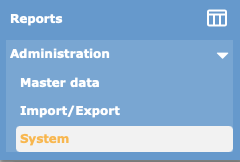
First, open the System menu.
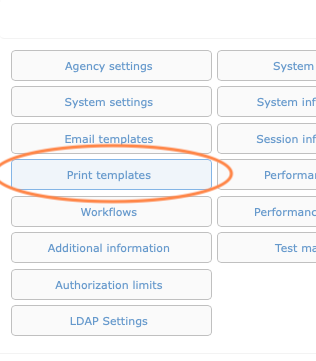
Then select Print Templates from the overview.
You will now see the overview of all print templates. To create a new template, click Add Form.

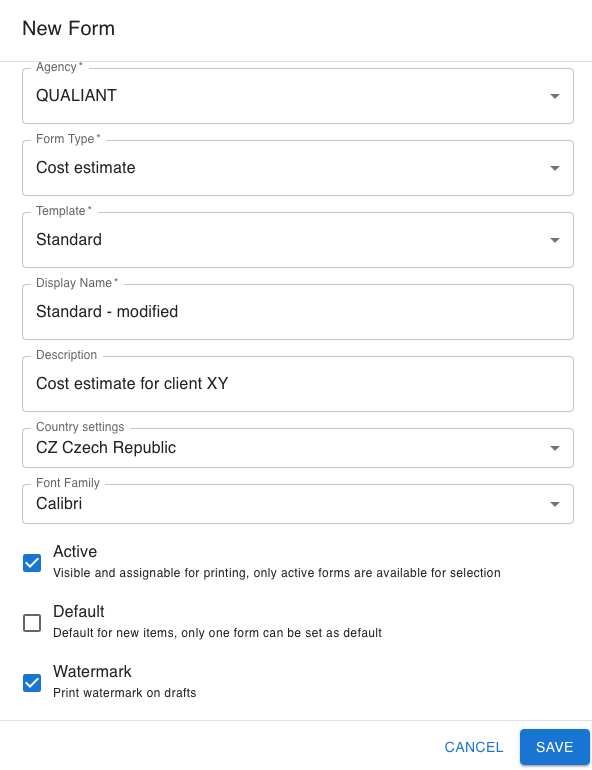
The input form for defining the template parameters will then open.
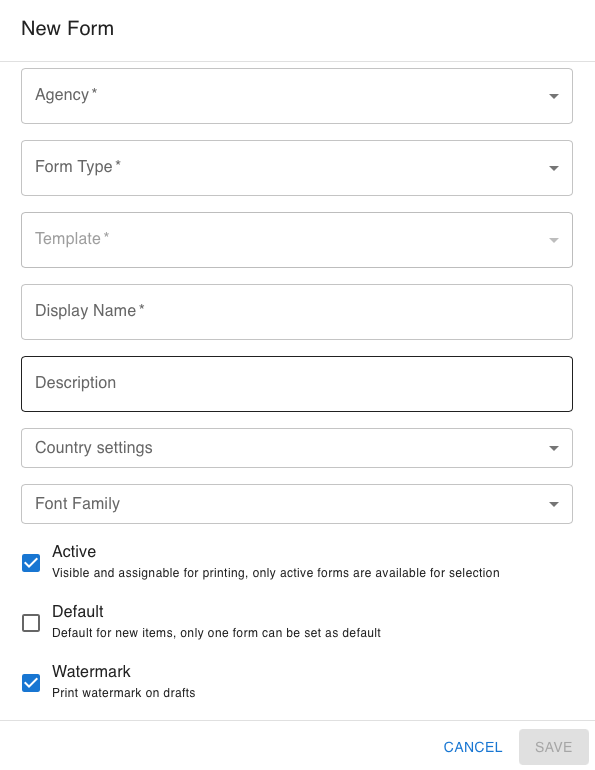
The fields have the following purpose:
- Agency: Specify whether the layout should be available for a specific agency or for All Agencies.
- Form Type: Select whether you want to create a template for Orders, Cost Estimates or Client Invoices.
- Template: Currently, only the Standard layout is available. Additional templates will be added in future versions.
- Display Name: Enter the name that should be displayed in the layout selection.
- Description: Enter an optional description of the layout.
- Country Settings: Select the language and regional settings to be used for the layout, including separators, date formats and number formats.
- Font Family: Select the font that should be used for the layout.
- "Active" checkbox: Determines whether the layout is available for selection. You can also deactivate the layout again using this option.
- "Default" checkbox: Determines whether the layout should be selected as the default. Only one layout per form type can be defined as the default.
- "Watermark" checkbox: Determines whether the watermark Draft (or Entwurf) should be printed on draft documents.
A completed example could look like this:
Click Save. The new layout will then appear in the list of print templates.
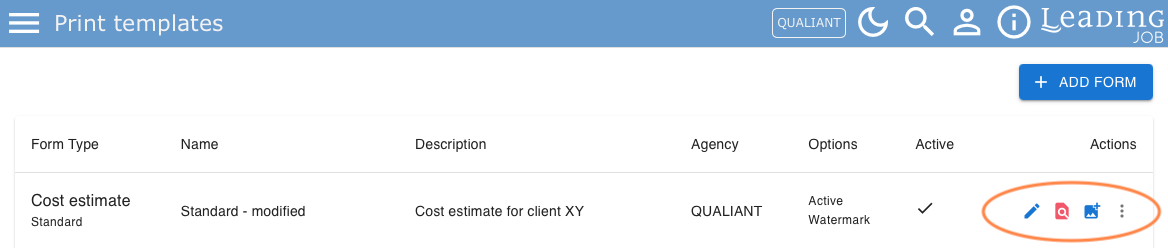
The following additional functions are available on the right-hand side of the list:
- Use the Edit icon (pencil) to modify the layout.
- Use the Preview icon to display a preview of the current layout.
- Use the Image icon to upload a logo and footer.
- Use the More Options icon (three dots) to delete the layout.
To define a logo and footer for the layout, click the Image icon to open the corresponding window.
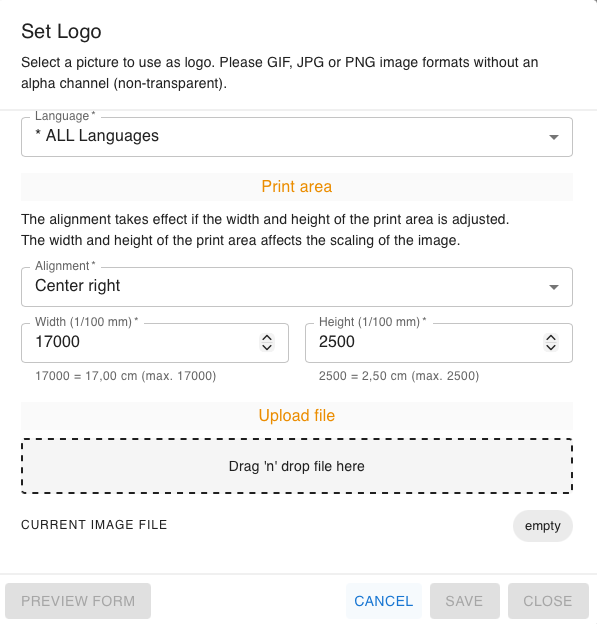
Here you can specify which logo and footer should be used for each language. For example, you can define one footer for German and another one with different account details and text for English.
You can also define the image alignment and specify the printable area of the layout in 1/100 mm.
Simply drag and drop the image file into the designated upload area.
To preview the result, select Form Preview and then click Save.
Master Data
2. "Payment Terms" now available in the LEADING Job web application
As another step towards completing the web application, the Payment Terms master data module has now been migrated to the web.
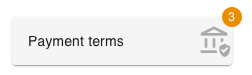
Click the master data entry to open the corresponding module.
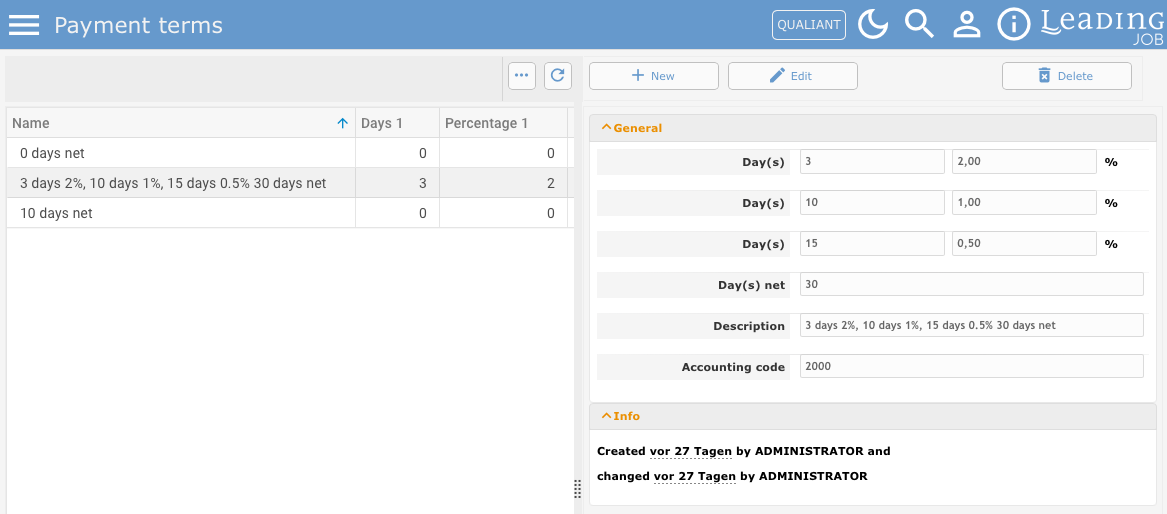
As usual, you can select an existing entry from the list on the left and edit it if required.
Alternatively, click New to create a new payment term.
Client Invoice
3. New option to invoice multiple jobs at the same time
This feature has been requested by many users: It is now possible to combine multiple jobs belonging to the same client into a single client invoice. The selected jobs must all belong to the same client.
First, filter the job list by the required client. Then use the multi-selection option to select the jobs you want to invoice together.
The Prepare draft invoice function remains available. Use this button to create a single invoice draft for all selected jobs.
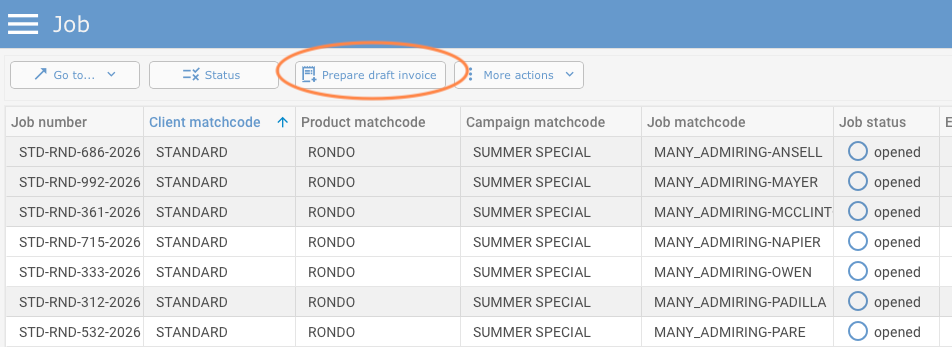
The first dialog offers two options:
- Create a separate client invoice draft for each job.
- Create one shared client invoice draft for all selected jobs.
Select the second option and click Create draft invoice.
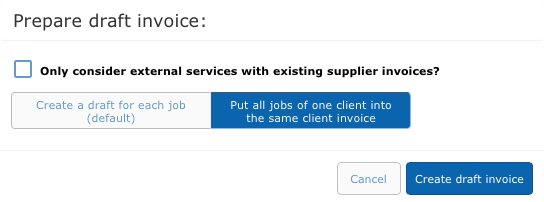
The familiar second dialog will then open. From there, you can use the link to switch directly to the newly created invoice draft.
The overview now clearly shows that the invoice draft contains multiple jobs.
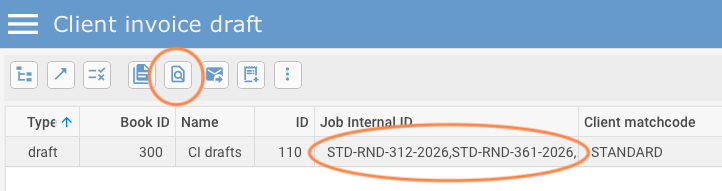
Click Preview to see that this is a multi-job invoice and that the line items from all selected jobs are included in the same invoice.
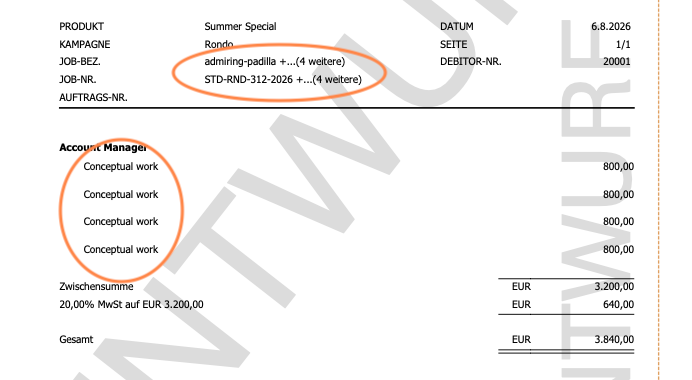
You can then continue with the invoicing process as usual.
Do you have questions about this release note? Have you discovered a bug in the current version? Get in touch with our LEADING Job Support team:
+43 1 503 6644
_______________________________________
Updates to the LEADING Job web application are only carried out after prior consultation with the customer. You can test all new features in your test database before they are deployed. This document is provided for information purposes only and does not constitute any guarantee or contractual obligation.
The information contained herein reflects the state of the software at the time of publication. Subsequent changes are possible.
The contents of this document are not part of the licence agreement. Qualiant Software accepts no liability for the accuracy or completeness of the information provided.
LEADING Job integrates project management and resource planning for agencies with time tracking, leave management and workload planning, covering the entire process from cost estimates and invoicing to accounting, controlling and reporting. Available as a cloud or on-premise solution. Keep your agency under control with Qualiant Software.