
proAudio: Prepare RMS Booking Requests in Just a Few Clicks
Part 8: Direct RMS-Export
Less manual work, a simpler booking process: The new RMS export function in LEADING Media proAudio makes it easier for media agencies to prepare and send radio booking requests.
Previously, agencies had to export CSV files or media schedules from LEADING Media, prepare an email and send the relevant information to RMS manually.
With the new RMS export, several of these steps are now handled directly within proAudio.
Previously: Export CSV Files, Write an Email, Add Booking Details
Anyone who regularly plans radio campaigns knows the process: The campaign is ready, all stations, periods and booking volumes have been finalised. Now it's time to send the booking requests to the sales house.
Until now, RMS bookings involved exporting CSV files or media schedules from LEADING Media, preparing an email and adding all the relevant booking information.
This meant additional work, especially for campaigns involving several RMS combinations.
The new RMS export function in proAudio makes this process much easier.
How the New RMS Export Works
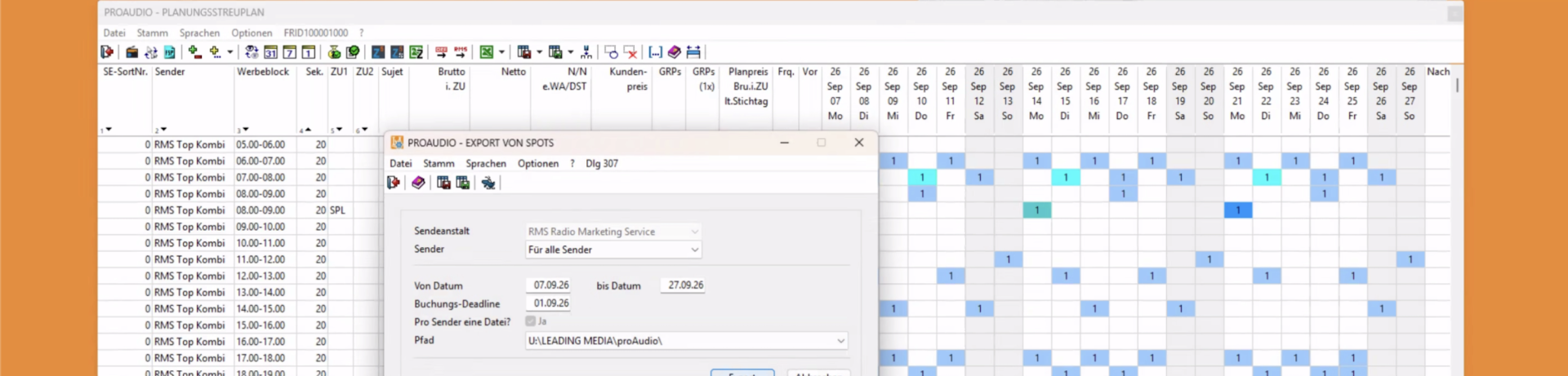
The new function is integrated directly into LEADING Media proAudio and can be accessed via the RMS button once radio planning is complete.
The most important details are already prefilled. You can adjust the selection individually if needed.
1. Select RMS Combinations
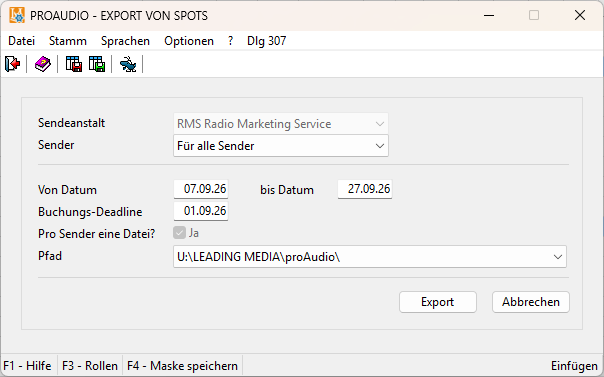 By default, all planned RMS combinations can be included.
Do you only want to book a specific combination, or have you already submitted part of your campaign? Simply select the combinations you need.
2. Define the Booking Period
The planned campaign period is automatically filled in.
If you only want to submit part of the campaign period, you can adjust the start and end dates accordingly.
3. Specify the Booking Deadline
A separate field is available for the booking deadline. This lets RMS know when you need to receive the binding booking confirmation.
4. Start the Export
With one click on “Export”, proAudio creates the required booking files.
A separate file is generated for each selected RMS combination, in accordance with RMS requirements.
5. Select RMS Contacts
RMS contacts are stored in the master data of LEADING Media under the invoice issuer.
When using the RMS export, you can access these saved contacts directly or add additional contacts if needed.
The selected email addresses are automatically entered into the “To” field of the prepared booking email.
6. Prepare and Send the Email
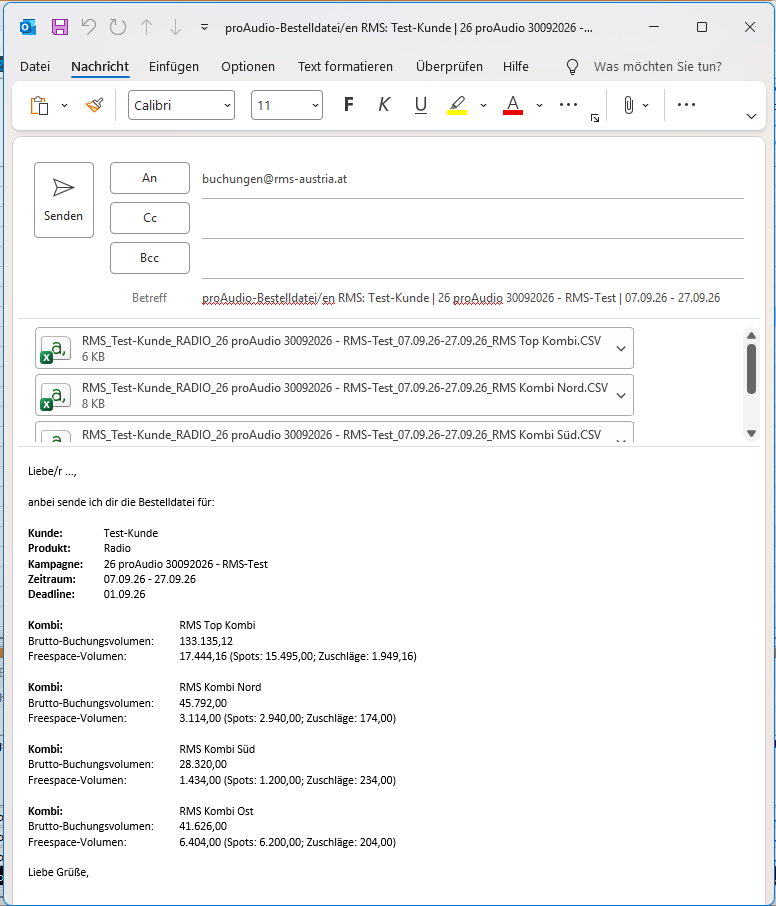 After the export, a prepared email opens automatically.
It already contains the relevant booking information, including the generated files.
This means you no longer have to gather the booking details individually or copy them into the message manually.
All Important Booking Information Automatically Included in the Email
One particularly useful feature is that proAudio not only creates the export files but also prepares the corresponding email with all relevant information.
This includes:
- Campaign and booking period
- Requested booking deadline
- Individual RMS combinations
- Booking volume per combination
- Freepace volume
- Breakdown of spots and surcharges
- Relevant booking files as attachments
This gives RMS a clear overview of all the information needed to process the booking request.

See for Yourself How Easy the RMS Export Is
In our short screencast, we show you step by step how to select RMS combinations, define booking periods and prepare the booking files together with the email.