

proAudio Feature: Budget Check
Part 7: Keep budget, GRPs and station mix in view
How much of the budget has already been allocated? Are we reaching the planned GRPs? And does the current distribution still match the intended station mix?
With the Budget Check in LEADING Media proAudio, you can compare your defined targets with the current status of the radio campaign at any point during planning.
To do this, you first enter a few target values in the campaign’s basic data. After that, you plan the campaign as usual and can check the current status whenever you need to.
Define budget and GRPs as target values
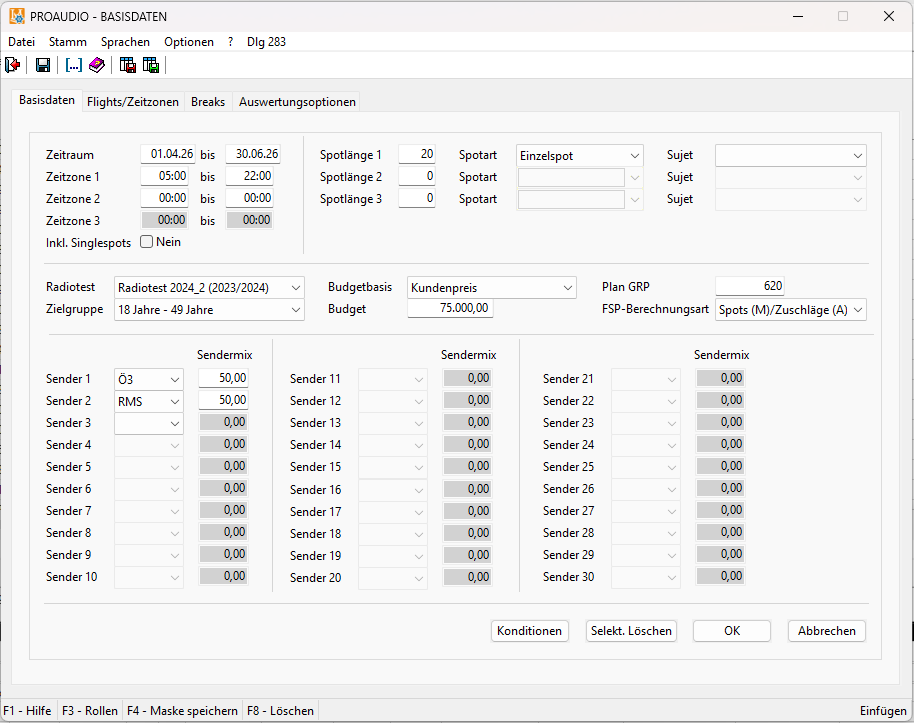
The settings for the Budget Check can be found directly in the Basic Data input screen.
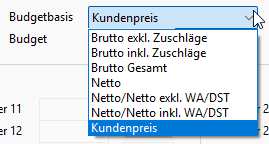
First, select the required Budget Basis. This determines which price is used for the target-versus-actual comparison in the Budget Check.
The following options are available: Gross excl. surcharges, Gross incl. surcharges, Gross total, Net, Net/Net excl. advertising tax/digital services tax, Net/Net incl. advertising tax/digital services tax, and Customer price.
In the “Budget” field below, you then enter the target value for your campaign.
In the example, Customer price is selected as the budget basis and a campaign budget of EUR 75,000 is entered.
In addition to the budget, you can also define the desired gross reach of the campaign as a percentage. In the “Plan GRP” field, enter the number of GRPs (Gross Rating Points) the campaign should achieve.
In the example, the target value is 620 GRPs.
Include Free Space in the planning
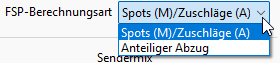
The calculation of Free Space is also defined in the basic data.
In the “FSP Calculation Type” field, you can choose between the two options “Spots (M) / Surcharges (A)” and “Proportional deduction”.
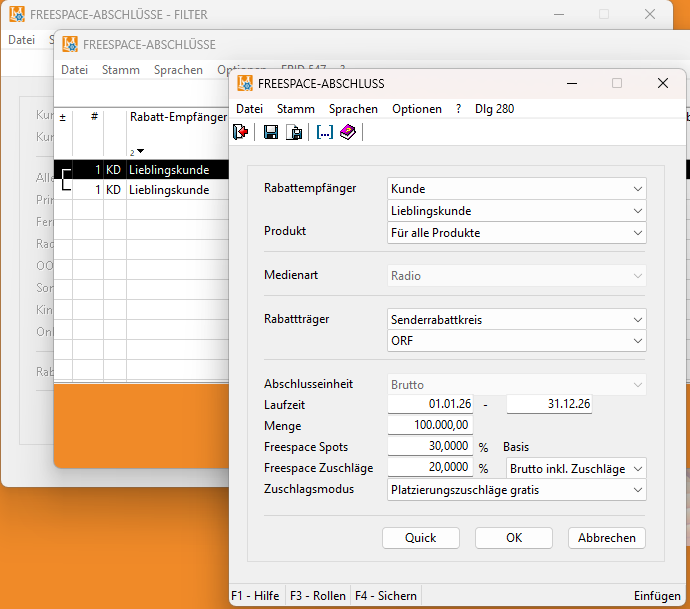
The Free Space values that apply by default are stored in the LEADING Media master data under Discount Agreements → Free Space Agreements.
Here, you can define, among other things, the percentage of Free Space spots, the percentage of Free Space surcharges, the respective calculation basis and the surcharge mode.
Adjust station conditions if required
Not every campaign has to use the standard conditions stored in the system.
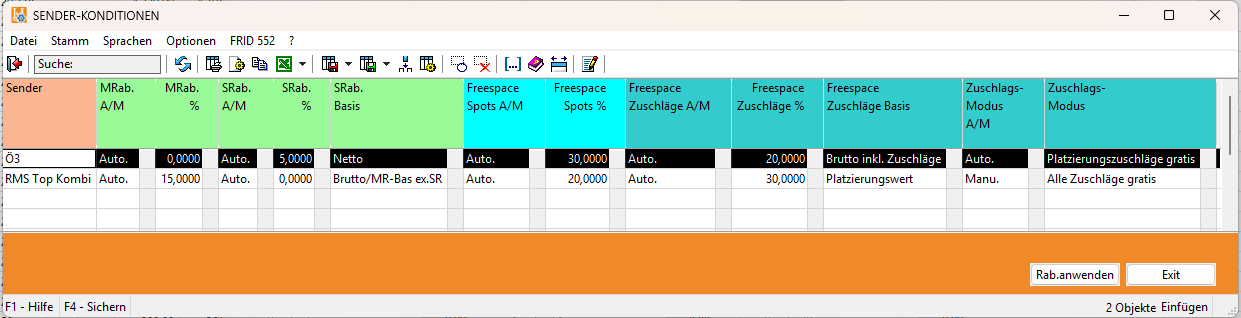
Using the “Conditions” button in the basic data, you can open the station conditions for the current planning and adjust them manually if required.
Here, for example, you can see the Free Space values for spots and surcharges for each station.
Define the desired station mix
A desired distribution across the individual radio stations can also be stored as a target value.
The basic data provides up to 30 station positions. For each selected station, you can enter the desired percentage share of the station mix.
In the example, the campaign is to be distributed 50 percent to Ö3 and 50 percent to RMS.
This means that the Budget Check can later not only monitor budget and GRPs, but also show whether the current planning matches the desired station mix.
Once all required target values have been entered, click “OK” to save the settings and continue planning the campaign as usual.
One click shows where your planning currently stands
During planning, the Budget Check can be opened at any time via the money bag icon with the check mark.
This is where it gets interesting: the Budget Check compares the stored target values directly with the current actual values.
For budget, GRPs and station mix, you can see Target, Actual and Difference side by side.
This makes it immediately clear:
- How much of the budget has already been allocated?
- How large is the difference from the target budget?
- How many GRPs have already been planned?
- How far is the campaign from its GRP target?
- Does the current station distribution match the desired station mix?
- What does the current Free Space distribution look like?
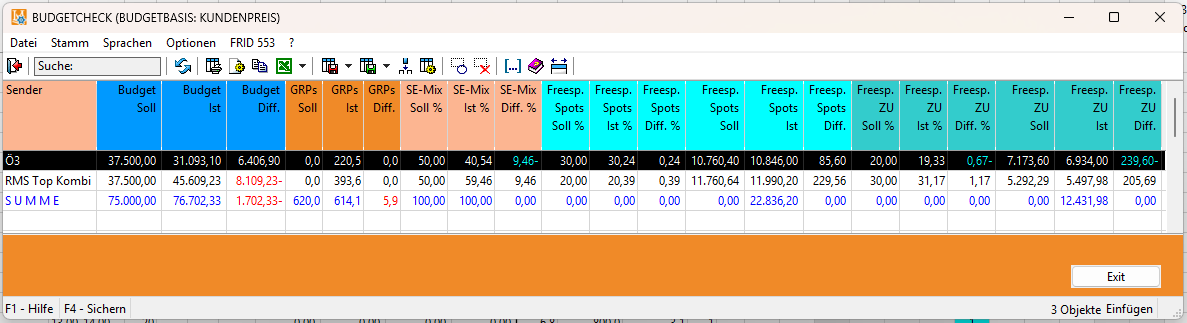
In the example shown, EUR 76,702.33 has already been allocated against a target budget of EUR 75,000. The GRP comparison of 620 target versus 614.1 actual also shows immediately where the campaign currently stands.
This allows you to fine-tune the campaign during the planning process instead of only discovering at the end that the budget, performance target or station mix still needs adjustment.
Customize the view and assign values quickly
You can customize which columns are displayed in the Budget Check. Columns can be shown or hidden and arranged as required.
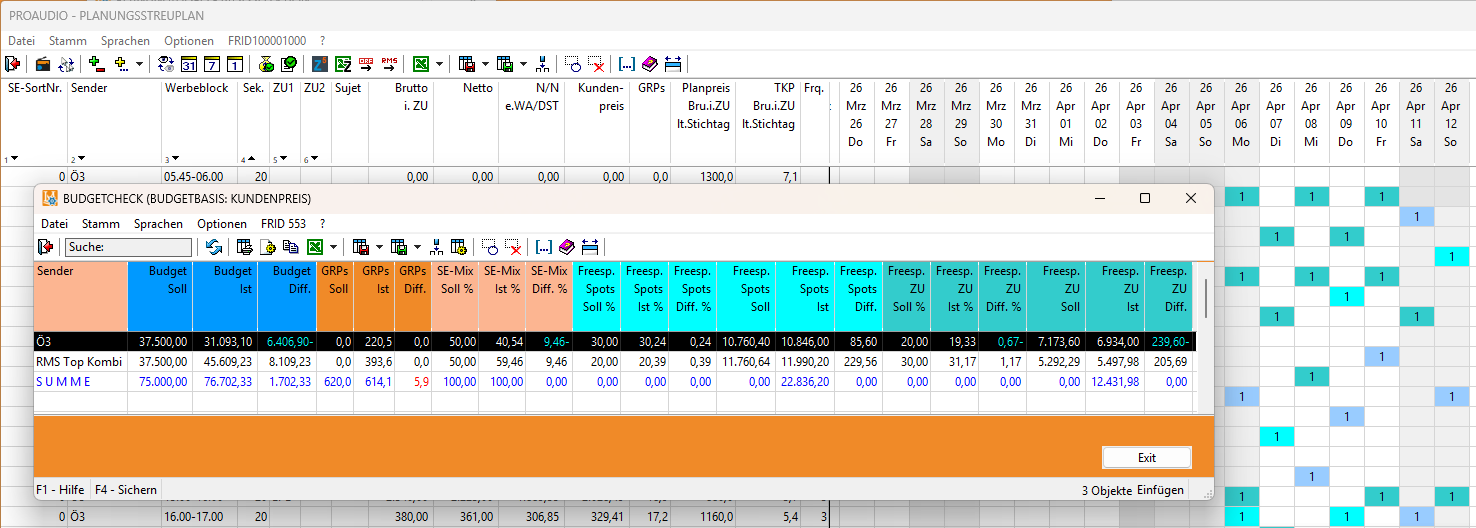
The colors also make orientation easier: they correspond to the colors of the respective spot bookings in the planning schedule.
This makes it easier to connect the figures in the Budget Check with the actual campaign planning.
Your benefits at a glance
- Compare the current budget with the target value at any time
- Keep planned GRPs in view
- Compare the desired and actual station mix
- Include Free Space in the campaign check
- Identify deviations during planning
- Fine-tune the campaign directly
- Customize the Budget Check to suit your way of working
With the Budget Check in proAudio, you can see at any time how your current radio planning compares with the defined targets – and make adjustments wherever necessary.
